Now that you’ve toured the workspace and used a quick chat, it’s time to start an agent session and make your first change to the project. You’ll keep it small: the games already have a star rating in their data, but the game cards on the home page don’t show it yet. You’ll ask the agent to surface it, review the change, and merge it as your first pull request.
In this lesson, you will:
- start an agent session and learn how a session is structured.
- ask the agent to make a small, focused change to the project.
- review the change in the workspace diff view.
- run the app locally to confirm the change in the browser.
- open and merge your first pull request.
Scenario
Each game in Tailspin Toys can have a star rating, and it already appears on the game details page. The game cards on the home page, though, only show the title, category, publisher, and description. As a warm-up, you’ll have the agent display the existing rating on each card — a tiny, self-contained change that’s perfect for your first session.
Anatomy of a session
A session is a conversation with an agent that runs in its own isolated workspace. Every session gets a dedicated git worktree and branch, which is what lets you run several sessions at once — one adding a feature, another fixing a bug — without their changes colliding. Your sessions appear in the sidebar grouped by repository; select any one to switch to it.
Inside a session you’ll see three things: the conversation with the agent, the agent’s tool activity as it explores and edits files, and the list of changed files with their diffs.
Start a session and request our change
Let’s start a new session to begin exploring the project and implementing our feature. During app setup, you added your project from its GitHub repository. We’ll create a new session for that repository and request our change.
-
Return to (or open) the GitHub Copilot app.
-
Select the + next to Projects.
-
Select
tailspin-toysfor the repo. -
Choose a new working tree and Interactive mode below the prompt box. Use the following prompt to request the change:
Show each game's starRating out of 5 in the game cards on the list page. If the rating is null, show "No rating yet". Keep the card layout as it is, add tests, and run the relevant checks. -
Press Enter to send the prompt to Copilot.
Copilot app begins work by first creating a new worktree, an isolated copy of the project. It then explores the project, locating the necessary files to update to add the new feature. It will then create the necessary code. You’ve now added a new feature with Copilot app!
Review the diff
All AI-generated changes deserve a review before they’re merged, even small ones. Let’s explore the changes, right here in Copilot app.
-
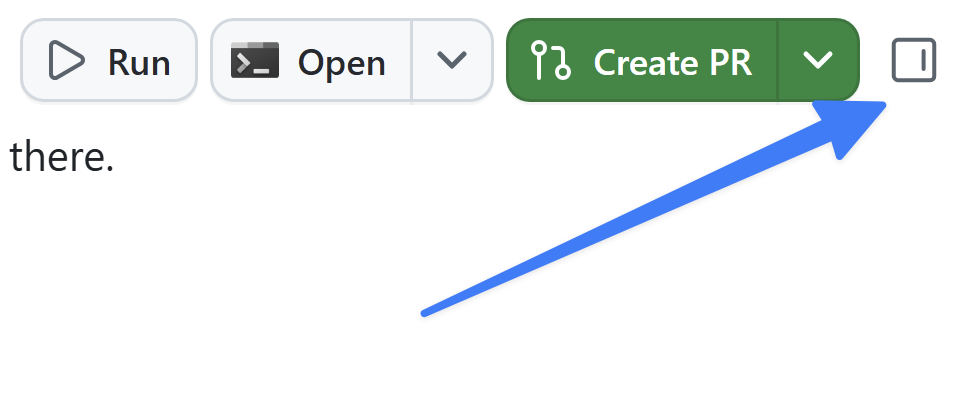
In the upper right-hand corner of the app, select Toggle review panel. This will open the diff screen with all the outstanding changes made by Copilot.
-
You should notice code added to
GameCard.astro, the core file used to display game details. It should be similar to the following — a small block that renders the rating when present and falls back to “No rating yet” whenstarRatingisnull:{game.starRating !== null ? ( <span class="text-xs font-medium px-2.5 py-0.5 rounded bg-amber-900/60 text-amber-300" data-testid="game-rating"> ★ {game.starRating} / 5 </span> ) : ( <span class="text-xs font-medium text-slate-500" data-testid="game-rating-empty"> No rating yet </span> )}
Check the changes
Review the agent’s automated check results before opening a browser. Confirm that tests cover a numeric starRating and the null fallback. A missing prerequisite or skipped check is not a pass; review any installation request before approving it.
Of course we shouldn’t just read the code and assume it works. Let’s ask Copilot to open our website so we can examine the updated UI. We can do this by having it start the website and opening it in a browser canvas.
-
Use the following prompt to request Copilot start the app and open the page in the browser canvas:
Start the app and open it in the browser canvas. -
In a few moments the app will start and a browser window will open inside the Copilot app.
-
Confirm rated game cards display their value out of five.
-
When finished, ask Copilot to stop the dev server it started for this session by using the following prompt:
Stop the dev server and close the browser canvas.
Open and merge your first pull request
You’ve now created the feature! It’s time to create a pull request (PR) to merge the new code in with the existing codebase.
- Select Create PR in the upper right corner.
- If prompted, select Sign in with your browser and follow the prompts to authenticate.
- Copilot gets to work on creating the PR.
- Select the PR bubble just above chat to open your PR in the review pane to see your pull request. You can review the PR as needed here.
- Once ready, select Ready to merge.
- Select Merge pull request on the new dialog window to merge your pull request!
Summary and next steps
Congratulations! You shipped your first change using the GitHub Copilot app! Specifically, you:
- started an agent session and learned how sessions are structured.
- directed the agent to make a small, focused change to the game cards.
- reviewed the change in the workspace diff view.
- ran the app locally to confirm the star rating in the browser.
- opened PR 1, reviewed its checks, and explicitly merged it.
Next, you’ll start from the filtering issue and use Plan and Autopilot modes to build a larger feature.